

Do you have an app?
Yes & No.
Due to Google Play and Apple App Store guidelines, adult content apps are not allowed. But we do offer a progressive web app, which offers every feature by adding us on your device’s home screen.
Progressive Web App (PWA) provides an installable, app-like experience on both desktop and mobile, delivered directly through the web. PWAs offer a user experience similar to traditional apps or native mobile applications.
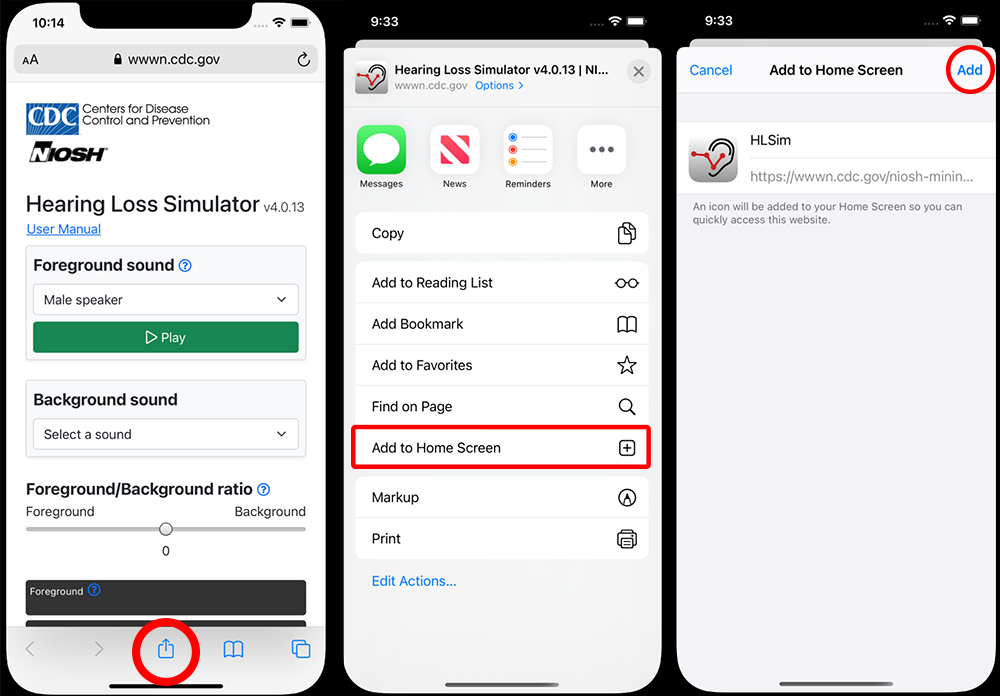
Installing on iOS
A PWA can only be installed on iOS using the Safari web browser. First, navigate to the site in Safari. Press the "Share" button and select "Add to Home Screen" from the popup. Lastly, tap "Add" in the top right corner to finish installing the PWA. It will now be on your home screen.
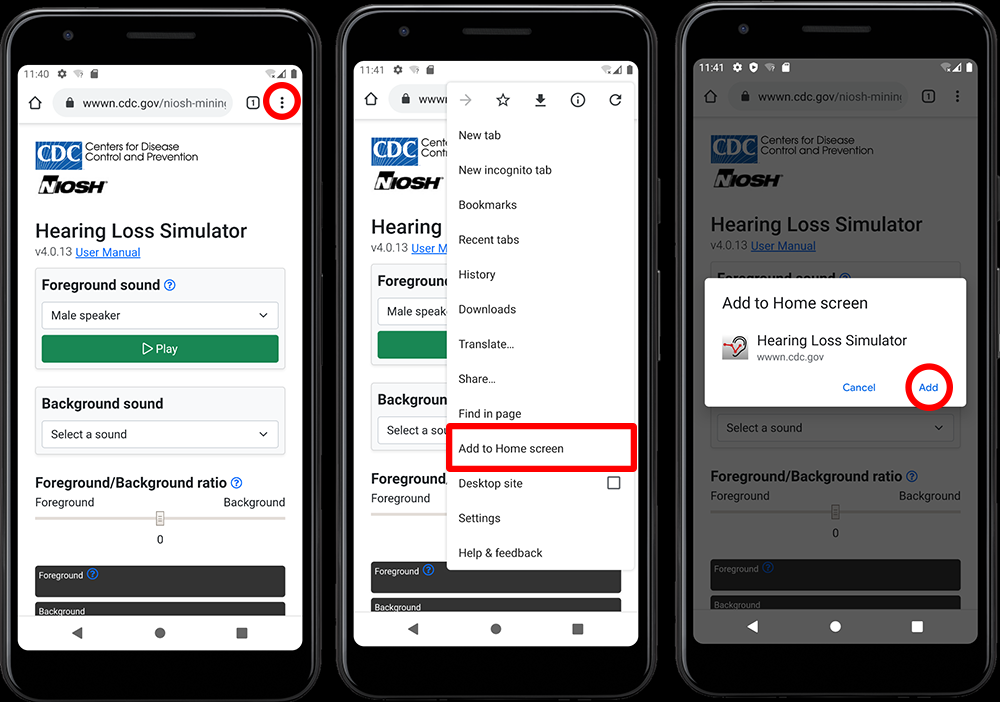
Installing on Android
The default Chrome browser is capable of installing PWAs for Android. First, navigate to the site in Chrome. Press the "three dot" icon in the upper right to open the menu. Select "Add to Home screen." Press the "Add" button in the popup. The PWA is now installed and available on your home screen.
Installing on a Windows PC or Mac
Google Chrome:
Navigate to the website. Click the Install icon in the right side of the address bar.
Alternatively, click the three dots Google Chrome menu on the top right > Cast, save and share > Install page as app.
Microsoft Edge:
Navigate to the website. Look for the App Available or Install icon in the far right of the address bar (it looks like a monitor with a downward arrow).
Alternatively, click the Settings and More menu (...) in the top right > Apps > Install this site as an app.